
Showing posts with label Todd Kerpelman. Show all posts

Wednesday, 22 March 2017

BigQuery Tip: The UNNEST Function

Todd Kerpleman
Todd Kerpelman
Developer Advocate
By now, you probably already know that you can export your Firebase Analytics data to BigQuery, which lets you run all sorts of sophisticated ad hoc queries against your analytics data.

At first, the data set in BigQuery might seem confusing to work with. If you've worked with any of our public BigQuery data sets in the past (like the Hacker News post data, or the recent San Francisco public data that our Developer Advocate Reto Meier had fun with), it probably looked a lot like a big ol' SQL table. Something like this:
The truth of the matter is that BigQuery can get much more sophisticated than that. The rows of a BigQuery table don't just have to be straightforward key-value pairs. They can look more like rows of JSON objects, containing some simple data (like strings, integers, and floats), but also more complex data like arrays, structs, or even arrays of structs. Something a little more like this:

Firebase Analytics takes advantage of this format to bundle all of your users' user properties together in the same row. Rather than have you perform some kind of join against a separate user_properties table, all of your user properties are included in the same BigQuery row as an array of structs.

A slightly simplified version of the user_properties struct in your BigQuery data 

The same thing holds true for your events. Your event parameters are included inside your events as an array of structs. And it turns out these events themselves are stored inside of an array. One single row of data in BigQuery will often contain 2 or 3 Firebase Analytics events all bundled together.
This means a single row in your BigQuery table can contain an array of user properties, as well as an array of events, which in turn also have their own arrays of event parameters. I know combining all of that information into a data structure like this seems confusing at first, but in the long run, it actually makes your life easier because there aren't any JOINs with other tables for you to worry about.

Important note: For all of these examples, I'm going to be using standard SQL, which is what all the cool kids are doing this days1. If you want to follow along, turn off Legacy SQL in your BigQuery options. Also, you'll need to follow this link to access the sample Firebase Analytics data we'll be using.

For example, I can see all of my event data at once just by calling

#standardSQL
SELECT event_dim
FROM `firebase-analytics-sample-data.android_dataset.app_events_20160607`
LIMIT 50
and I'll get back all of my event data, along with all of the event parameters, in one nice little table
And then if we want to get a list of all of my "Round completed" events, I can just write some SQL like this…

#standardSQL
SELECT event_dim
FROM `firebase-analytics-sample-data.android_dataset.app_events_20160607`
WHERE event_dim.name = "round_completed"
...which gives me a nice result of...

Error: Cannot access field name on a value with type ARRAY<STRUCT<date STRING, name STRING, params ARRAY<STRUCT<key STRING, value STRUCT<string_value STRING, int_value INT64, float_value FLOAT64, ...>>>, ...>> at [2:17]

Oh. Oh dear. 

Okay, so this won't win any awards for "Best Error Message of 2017"2 , but if you think about it, the reason it's barfing makes sense. You're trying to compare a string value to "an element of a struct that's buried inside of an array". Sure, that element ends up being a string, but they're fairly different objects.

So to fix this, you can use the UNNEST function. The UNNEST function will take an array and break it out into each of its individual elements. Let's start with a simple example.

Calling:

#standardSQL
WITH data AS (
SELECT "primes under 15" AS description,
[1,2,3,5,7,11,13] AS primes_array)
SELECT *
FROM data
will give you back a single row consisting of a string, and that array of data.

Instead, try something like this:

#standardSQL
WITH data AS (
SELECT "primes under 15" AS description,
[1,2,3,5,7,11,13] AS primes_array)
SELECT description, prime
FROM data CROSS JOIN UNNEST (primes_array) as prime
What you're basically saying is, "Hey, BigQuery, please break up that primes_array into its individual members. Then join each of these members with a clone of the original row." So you end up with a data structure that looks more like this:
The results are similar as before, but now each prime is in its own row:
You'll notice that the original primes_array is still included in the data structure. In some cases (as you'll see below), this can be useful. In this particular case, I found it was a little confusing, which is why I only asked for the individual fields of description and prime instead of SELECT *.3

It's also common convention to replace that CROSS JOIN syntax with a comma, so you get a query that looks like this.

#standardSQL
WITH data AS (
SELECT "primes under 15" AS description,
[1,2,3,5,7,11,13] AS primes_array)
SELECT description, prime
FROM data, UNNEST (primes_array) as prime
It's the exact same query as the previous one; it's just a little more readable. Plus, I can now stand by my original statement that this data format means you don't have perform any JOINs. :)

And the nice thing here is that I now have one piece of "prime" data per column that I can interact with. So I can start to do comparisons like this:

#standardSQL
WITH data AS (
SELECT "primes under 15" AS description,
[1,2,3,5,7,11,13] AS primes_array)
SELECT description, prime
FROM data, UNNEST (primes_array) as prime
WHERE prime > 8
To get just that list of prime numbers between 8 and 15.
So going back to our Firebase Analytics data, I can now use the UNNEST function to look for events that have a specific name. 

#standardSQL
SELECT event.name, event.timestamp_micros
FROM `firebase-analytics-sample-data.android_dataset.app_events_20160607`,
UNNEST(event_dim) as event
WHERE event.name = "round_completed"

As you'll recall, events have their own paramsarray, which contains all of the event parameters. If I were to UNNEST those as well, I'd be able to query for specific events that contain specific event parameter values:

#standardSQL
SELECT event, event.name, event.timestamp_micros
FROM `firebase-analytics-sample-data.android_dataset.app_events_20160607`,
UNNEST(event_dim) as event,
UNNEST(event.params) as event_param
WHERE event.name = "round_completed"
AND event_param.key = "score"
AND event_param.value.int_value > 10000

Note that in this case, I am selecting "event" as one of the fields in my query, which gives me the original array of all my event parameters nicely grouped together in my table results.

Querying against user properties works in a similar manner. Let's say I'm curious as to what language my users prefer using for my app, something our app is tracking in a "language" user property. First, I'll use the UNNEST query to get just a list of each user and their preferred language.

#standardSQL
SELECT
user_dim.app_info.app_instance_id as unique_id,
MAX(user_prop.key) as keyname,
MAX(user_prop.value.value.string_value) as keyvalue
FROM `firebase-analytics-sample-data.android_dataset.app_events_20160607`,
UNNEST(user_dim.user_properties) AS user_prop
WHERE user_prop.key = "language"
GROUP BY unique_id
And then I can use that as my inner selection to grab the total number of users4 that fits into that group.
#standardSQL
SELECT keyvalue, count(*) as count
FROM (
SELECT
user_dim.app_info.app_instance_id as unique_id,
MAX(user_prop.key) as keyname,
MAX(user_prop.value.value.string_value) as keyvalue
FROM `firebase-analytics-sample-data.android_dataset.app_events_20160607`,
UNNEST(user_dim.user_properties) AS user_prop
WHERE user_prop.key = "language"
GROUP BY unique_id
)
GROUP BY keyvalue
ORDER BY count DESC
I can also UNNEST both my event parameters and my user properties if I want to create one great big query (no pun intended) where I want to look at events of a specific name where an event parameter matches a particular criteria, while also filtering by users who meet a certain criteria:

#standardSQL
SELECT user_dim, event, event.name, event.timestamp_micros
FROM `firebase-analytics-sample-data.android_dataset.app_events_20160607`,
UNNEST(event_dim) as event,
UNNEST(event.params) as event_param,
UNNEST(user_dim.user_properties) as user_prop
WHERE event.name = "round_completed"
AND event_param.key = "squares_daubed"
AND event_param.value.int_value > 20
AND user_prop.key = "elite_powers"
AND (CAST(user_prop.value.value.string_value as int64)) > 1
Once you start playing around with the UNNESTfunction, you'll find that it's really powerful and it can make working with Firebase Analytics data a lot more fun. If you want to find out more, you can check out the Working with Arrays section of BigQuery's standard SQL documentation.

And don't forget, you get 1 terabyte of usage data for free every month with BigQuery, so don't be afraid to play around with it. Go crazy, you array expander, you!


1 The BigQuery team has asked me to inform you that this is really because standard SQL is the preferred SQL dialect for querying data stored in BigQuery. But I'm pretty sure they're just saying that so they get invited to all the good parties.

2 Yet another year the Messies have slipped from our grasp!

3   I could have also done this by saying "SELECT * EXCEPT (primes_array)", which can be pretty convenient sometimes.

4 Okay, technically, each "App Instance" -- a user interacting with my app from multiple devices would get counted multiple times here.




Share:

Thursday, 16 February 2017

"How do I add Firebase Analytics to an app that's already using Google Analytics?"

Todd Kerpleman
Todd Kerpelman
Developer Advocate
One frequent scenario we encounter with developers is that they like the idea of using Firebase Analytics to track and understand in-app event data, but they've already spent the last several years tweaking and tuning their Google Analytics implementation just they way they like it, and aren't keen to start all over again with a brand new reporting tool.

However they're still interested in taking advantage of Firebase Analytics and some of the nifty cross-functional features it offers. Things like creating custom Audiences to use for more targeted Notifications, or creating User Properties that can be used for Remote Config targeting.

So, how do you get both working at the same time? Let's look at a few different strategies you can try if you're interested in adding Firebase Analytics to your Google Analytics-enabled app.

First, Let's Talk Events

To make our example a little more concrete, let's assume that we've got a mobile game that is sending across these three events to Google Analytics at the end of every round: Total score, enemies beaten, and rounds survived. Our method to record these values to Google Analytics might look a little like this:

func recordGameOver() {
let tracker = GAI.sharedInstance().defaultTracker
let gameOverEvent = GAIDictionaryBuilder.createEvent(withCategory: "gameOver",
action: "totalScore",
label: "",
value: myGameStats.totalScore as NSNumber)
let enemiesBeatenEvent = GAIDictionaryBuilder.createEvent(withCategory: "gameOver",
action: "enemiesBeaten",
label: "",
value: myGameStats.enemiesBeaten as NSNumber)
let roundsSurvivedEvent = GAIDictionaryBuilder.createEvent(withCategory: "gameOver",
action: "roundsSurvived",
label: "",
value: myGameStats.roundsSurvived as NSNumber)
tracker?.send(gameOverEvent.build() as [NSObject: AnyObject])
tracker?.send(enemiesBeatenEvent.build() as [NSObject: AnyObject])
tracker?.send(roundsSurvivedEvent.build() as [NSObject: AnyObject])
}

And before you ask: Yes, this could also be done using a single event with custom dimensions. The general concept is the same -- perhaps a little easier, in fact -- if that's what you're doing.

This gives us some nice little reports in Google Analytics where we can see, over time, our players' final score, enemies beaten, and the number of rounds they survived.

Now let's think about how we might want to translate this into Firebase Analytics events. While Google Analytics is structured around hierarchical events with one associated value each, Firebase Analytics is more about recording a single event with a number of associated key-value pairs passed along as event parameters.

So you could perform a fairly literal one-to-one translation from Google Analytics events to Firebase Analytics events like this...

  FIRAnalytics.logEvent(withName: "gameOverTotalScore", 
parameters: [kFIRParameterValue: myGameStats.totalScore as NSObject])
FIRAnalytics.logEvent(withName: "gameOverEnemiesBeaten",
parameters: [kFIRParameterValue: myGameStats.totalScore as NSObject])
FIRAnalytics.logEvent(withName: "gameOverTotalScore",
parameters: [kFIRParameterValue: myGameStats.totalScore as NSObject])
...but it's more natural in the Firebase Analytics world to record this as a single event with a number of custom parameters:
  let finalStats = ["totalScore": myGameStats.totalScore as NSObject,
"enemiesBeaten": myGameStats.enemiesBeaten as NSObject,
"roundsSurvived": myGameStats.roundsSurvived as NSObject]
FIRAnalytics.logEvent(withName: "gameOver", parameters: finalStats)

(And for those of you using the custom dimensions approach, this is probably even closer in line with what you're already doing.)

Going with this second approach does mean that you may want to use BigQuery to analyze the custom parameters that have been sent along with your events, but honestly, it's probably something you should be looking at anyway if you're really serious about your analytics data. And, as luck would have it, we've got a whole video all about that!

Adding Firebase the Correct Way

One of the first areas of confusion in getting Firebase Analytics up and running is that both Google Analytics and Firebase Analytics use a similar setup process.

On iOS, for instance, many developers have generated and added a GoogleService-info.plist file to their Xcode project in order to get Google Analytics up and running. But to configure Firebase Analytics correctly, you also need to generate another GoogleService-info.plist file, and add it to your Xcode project. How can you do both?

The answer here is to install Firebase not by creating a new Firebase project at the console, but by importing your existing Google Analytics-enabled project into Firebase.

When you create your Firebase project, you'll do so by clicking the "Import Google Project" button. Select your Google Analytics-enabled project, and then re-download your GoogleService-info file from the project settings.

What you'll get back will be a superset of the plist file you'd get from both Firebase Analytics and Google Analytics -- if you examine its contents, you should see a TRACKING_ID entry equal to your Google Analytics tracking ID, along will a whole bunch of new Firebase info. Replace your old GoogleService-info file with this new one, go through the rest of the Firebase installation process, and you're ready to go.

On Android, the process is basically the same, except that you're looking at a .json file instead of a .plist. And probably using Android Studio instead of Xcode.

Okay, so assuming we have our project set up correctly, how do we move ahead with including our data in both Google Analytics and Firebase Analytics? Here are three options we can try.

Option 1: Just Use Two Analytics SDKs

The simplest scenario here would simply be to keep the Google Analytics service up and running, while also adding Firebase Analytics tracking to your app. The resulting code on the client would look a little like this:

func recordGameOver() {
// All the old code you had previously to record Google Analytics
// …
// … So much code …
// …
// Now add the Firebase stuff
let finalStats = ["totalScore": myGameStats.totalScore as NSObject,
"enemiesBeaten": myGameStats.enemiesBeaten as NSObject,
"roundsSurvived": myGameStats.roundsSurvived as NSObject]
FIRAnalytics.logEvent(withName: "gameOver", parameters: finalStats)
}

Now from a developer standpoint, I could see why this kind of solution would be appealing; it's very simple to implement, and it's low risk. You don't have to worry about any disruptions to your current Google Analytics reports, because all of your client code is still there making all the same calls to Google Analytics like always. It's just that now, you're also making calls to Firebase Analytics and getting data into that system as well.
But this solution has a few drawbacks. For starters, you're now sending down data to two different analytics packages, which generally means that your client is making more network calls then before, and that means your app is using more of your user's mobile data and negatively impacting their battery life. On the other hand, Firebase Analytics tends to be quite conservative when it comes to making network calls, so we're only looking at a minor bump on top of your Google Analytics traffic. 

Perhaps a bigger drawback is that you now have double the analytics code all over the place. Now, if you've already abstracted your analytics call into a separate method that hides the implementation details underneath, perhaps this isn't a big deal. You'll just now add Firebase to this one method. But if you haven't, the of idea adding all this code throughout your app probably isn't super appealing to you. So there's another option you could consider, which is…

Option 2: Use Google Tag Manager to Report Events Everywhere

Google Tag Manager is this neat Swiss-army-knife of tools that has perpetually been on my, "One day I should spend more time learning about this thing" list. And it turns out for good reason. One really neat feature that Google Tag Manager provides is that when it sees an outgoing Firebase Analytics event, it can help you report those same events to Google Analytics, as well as some other third party analytics providers.
The nice part about this solution is that you only need one set of analytics-reporting code on your client. In our example, we would have a much simpler implementation where we could completely eliminate the Google Analytics calls:

func recordGameOver() {
let finalStats = ["totalScore": myGameStats.totalScore as NSObject,
"enemiesBeaten": myGameStats.enemiesBeaten as NSObject,
"roundsSurvived": myGameStats.roundsSurvived as NSObject]
FIRAnalytics.logEvent(withName: "gameOver", parameters: finalStats)
// That's it!
}

To use Google Tag Manager to report these events to Google Analytics, you'd need to install the library via CocoaPods / Gradle and add a .json file to your project. And that's about it on the client side. Most of the work is done within the Tag Manager console.

Over in the Tag Manager console, you'll want to create a Firebase Event Parameter Variable for every value you'll want to send to Google Analytics. In our example, we'd need a value for totalScore, enemiesBeaten, and roundsSurvived.
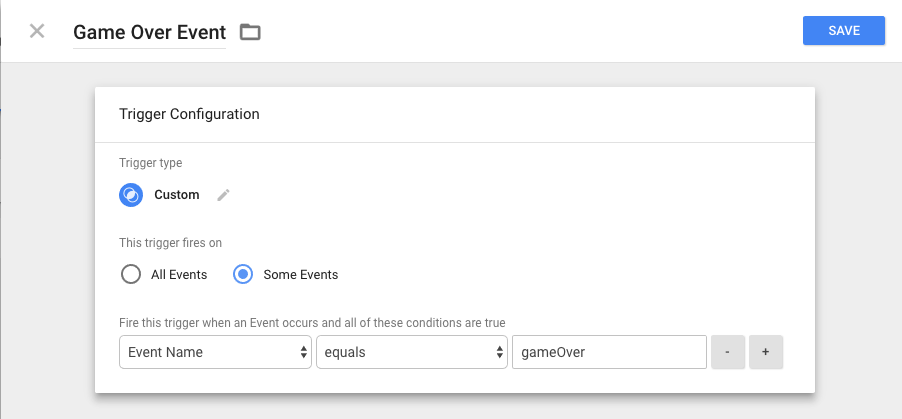
Next, you'll create a trigger for each Firebase Analytics events you want to correspond to. In our case, we'd want to create a trigger that fires whenever we see an event name called "gameOver"

Finally, you'll create tags where you respond to these triggers by sending off events to Google Analytics (referred to as Universal Analytics within Google Tag Manager). You can also send off events to services such as AppsFlyer, Kochava, Tune, and others.

Now I like this approach because, frankly, any opportunity you get to write less code is usually a good thing. This also gives you the flexibility to report some events to Google Analytics but not others, (if you wanted to start reporting some events exclusively to Firebase Analytics), or change how you're reporting your Firebase Analytics events to Google Analytics, even after the app has shipped!

One important note here is that you currently can't use Firebase Analytics and Google Tag Manager together to send ecommerce data to Google Analytics. This is something the team is working on addressing, but in the meantime, if you need ecommerce data in Google Analytics, you might want to consider one of the other options, or simply leave in the code to send ecommerce events to Google Analytics directly.

You're also still double-reporting analytics calls from the client, which, as we discussed above, isn't great. You also have to spend a chunk of time up front adding all your triggers, events and tags to the Google Tag Manager panel. But hey, I can think of worse ways to spend an afternoon.
But what if you're against the idea of running two analytics SDKs on the client? What other options are available to you? Glad you asked!

Option 3: Use BigQuery to Merge Everything

Another option you can consider is to completely replace Google Analytics with Firebase Analytics on the client, and then use BigQuery on the backend to merge your old Google Analytics data with your new Firebase Analytics data.


Now, granted, this solution only really makes sense if you're already a Google Analytics 360 customer and are currently using BigQuery to drive most of your custom reports. If this sounds like you, then updating your BigQuery queries to grab data from both data sources may be a reasonable option.

Going back to our example, let's assume we've already been generating a "Daily average final score" report within BigQuery by running a query that looks like this:

SELECT
AVG(hit.eventInfo.eventValue)
FROM
`my_awesome_app.ga_sessions_20170123`,
UNNEST(hits) AS hit
WHERE
hit.eventInfo.eventCategory = "gameOver"
AND hit.eventInfo.eventAction = "totalScore"
So now let's make the switch to Firebase Analytics. On the client, we can use the simple implementation from the previous example that only makes a call to Firebase Analytics...
func recordGameOver() {
let finalStats = ["totalScore": myGameStats.totalScore as NSObject,
"enemiesBeaten": myGameStats.enemiesBeaten as NSObject,
"roundsSurvived": myGameStats.roundsSurvived as NSObject]
FIRAnalytics.logEvent(withName: "gameOver", parameters: finalStats)
// That's it!
}
And then if we want to see the average enemies beaten over time, we'd need to merge the two datasets. The SQL for this might look a little something like this:

SELECT
COUNT(*),
AVG(total_score) AS average
FROM (
SELECT
event_param.value.int_value AS total_score
FROM
`firebase-project.com_example_awesome_app.app_events_20170123`,
UNNEST(event_dim) AS event,
UNNEST(event.params) AS event_param
WHERE
event.name = "gameOver"
AND event_param.key = "totalScore"
UNION ALL
SELECT
hit.eventInfo.eventValue AS total_score
FROM
`my_awesome_app.ga_sessions_20170123`,
UNNEST(hits) AS hit
WHERE
hit.eventInfo.eventCategory = "gameOver"
AND hit.eventInfo.eventAction = "totalScore" )

Obviously, this is a pretty simple example. Things can quickly get more complicated, depending on what you want to do and how your data is structured. But I've got some (much smarter) co-workers who are working on a blog post for the Google Cloud Big Data Blog that will cover some of these more sophisticated queries. So keep an eye out for that!
So there ya go, folks; a few pointers on how to add Firebase Analytics to your app that's already set up for Google Analytics. (Or, for that manner, any other analytics platform.) Once you've gotten that set up, I recommend trying out some Firebase features that make use of Firebase Analytics data: deliver a new Remote Config setup to users with a specific user property, or send a Notification to a Firebase Analytics Audience that you've created. And feel free to start tracking more Firebase Analytics events -- remember, it's free and unlimited, no matter how many users your app might have. There's a lot more exciting tools and features coming out for Firebase Analytics over the next year, so it's never too early to start adding Firebase Analytics to your mobile app. Give it a try!


Share: