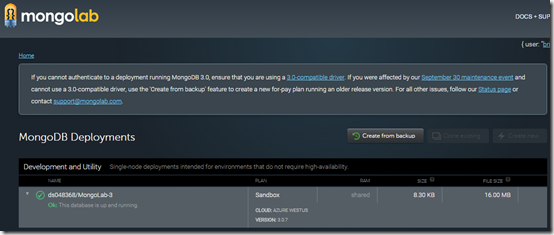
To start with this example I would recommend you to go through my previous posts mentioned above, this will give you a little background on what I am going to explain in this post.
Step 1: Restructure the application, in my previous example “Simple CRUD operation using MEAN stack” I have provided an application build on MEAN stack. I am going to take the sample application and split this into 2 parts one is for Client having Angular JS as client side technology and another into Server build on NodeJS + Express technology. And finally this is going to connect to MongoDB which I have used mongolab as DBaaS (Database as a Service). So the overall architecture of the application will be as follows

So my application structure will be as follows.
| Client and Server apps | AddressBookClient | AddressBookServer |
 |  |  |
Alternately you can also signup free for cloud based MongoDB, provided by MongoDB Atlas using this URL: https://www.mongodb.com/cloud/atlas
Step 2: Configure the Client and Server applications on Github, I have provided more details on application configuration on Github @ Continuous deployment of Node, Express application on Azure using Github. I am following similar steps here except the fact that instead of one consolidated application I am deploying two application i.e one for server and another for client.
Step 3: Configure the Client application on Microsoft Azure having Github as source control with continuous deployment 

Step 4: Configure the Server application on Microsoft Azure having source control on Github with continuous deployment 

Step 5: Create a new app settings key in Microsoft Azure console, and follow the steps
WEB APPS—>Your Application—>Configure—>Go to App Settings—>Add a new Key and Value as mentioned below. 
Step 6: Configure your nodejs application with this key. Using this key my nodejs server application will pull the DB connection string from the environment variable configured on Azure.
Step 7: Once your application is deployed on Azure, you can test your API by hitting the Url of NodeJS Express API, in my case it is : addressbookserver.azurewebsites.net/persons 
This gave me the JSON Response from the mongolab data store. In case if you don’t have any sample data on mongolab, you can login into your mongolab console and add few data with the schema similar to the one I have provided in the screen above. This is required only for testing purpose. From next time onwards my client application is going to GET/PUT/POST and DELETE these data.
Step 8: So up till here DB Server, Express API and Angular Client everything deployed on Azure, so ideally when I will hit the client URL it should call the Express API and using the mondodb driver the Express server should fetch the data from MongoDB hosted on mongolab server. Let’s go ahead and test my application end to end, well even though I have data in MongoDB but I am not getting any output on my client, instead if you open the console you can see I am getting error from my Express Server. 
XMLHttpRequest cannot load http://addressbookserver.azurewebsites.net/persons. No 'Access-Control-Allow-Origin' header is present on the requested resource. Origin 'http://addressbookclient.azurewebsites.net' is therefore not allowed access.This is due to the security feature which is provided by default by JavaScript, known as CORS (Cross-Origin Resource Sharing). This prevents JavaScript from making requests across domain boundaries, and has spawned various hacks for making cross-domain requests. CORS introduces a standard mechanism that can be used by all browsers for implementing cross-domain requests. The spec defines a set of headers that allow the browser and server to communicate about which requests are (and are not) allowed.
Since in this example I have broken down my application into client and server and hosted both of them on 2 different domains, which in turn triggered this extra layer of validation. CORS is a very vast topic in itself, so instead of diverting from actual topic I would recommend you to go to the dedicated site for CORS and read about it, I believe this might give you a very good understanding of the internals of CORS.
So coming back to the original article my next step will be to configure my application for CORS.
Step 9: CORS (Cross-Origin Resource Sharing)
In the code above I am adding my client URL to Access-Control-Allow-Origin fo the server.js file in Express API. With this all the response server by the Express API will validate the requestor before it sends any further response back to the client. In this way the default security feature provided by Javascript will make sure that no one else other than my client domain: http://addressbookclient.azurewebsites.net will be able to access my API. You can refer the expressjs implementation of CORS @ http://enable-cors.org/server_expressjs.html
Step 10: Now that we have everything in place let try refreshing the client URL: http://addressbookclient.azurewebsites.net
So now I am able to get the data from mongodb through Express API running on Nodejs.


And if I see the response, I can see the Access-Control-Allow-Origin is set for my client domain, which means if any other URL will try to access this they will get a similar error which I received in Step 8 above. But if you don’t want any constraints or restrictions then you can change this to Access-Control-Allow-Origin: ‘*’ here I have used wildcard asterisk to allow any domain to access my API.

And this is pretty much I had to share on this topic, but to get complete picture on all the associated topics, don’t forget to visit my previous posts:
- Continuous deployment of Node, Express application on Azure using Github
- Simple CRUD operation using MEAN stack
- NodeJS connectivity to MongoDB on Cloud - Microsoft Azure and mongolab
You can fork or clone the code @
- Server: https://github.com/bmdayal/AddressBookAPIServer.git
- Client: https://github.com/bmdayal/AddressBookAPIClient.git