Showing posts with label Visual Studio 2010. Show all posts

Wednesday, 14 November 2012

My Top 8 picks for Microsoft.NET Architects (ASP.NET MVC)

Past few month was very hectic for me, now since I have some time for myself I am sharing the list of articles which I am going through, these articles are basically related to architecting .NET application using ASP.NET MVC. I hope you will find these links useful for you too.

  1. Of course not to mention GoF Design Pattern Tutorial: http://www.dofactory.com/Patterns/Patterns.aspx
  2. On the same line as above, this link elaborates the patterns by GoF as Illustrated GOF Design Patterns in C# Part I: Creational: (Series Article)http://www.codeproject.com/Articles/3130/Illustrated-GOF-Design-Patterns-in-C-Part-I-Creati
  3. A N-Tier Architecture Sample with ASP.NET MVC3, WCF, and Entity Framework : http://www.codeproject.com/Articles/434282/A-N-Tier-Architecture-Sample-with-ASP-NET-MVC3-WCF
  4. Design pattern – Inversion of control and Dependency injection by By Shivprasad Koirala: http://www.codeproject.com/Articles/29271/Design-pattern-Inversion-of-control-and-Dependency
  5. LINQ and WF Based Custom Profile Provider for ASP.NET 3.5, this article demonstrates Microsoft Provider Pattern using Workflow Foundation: http://www.codeproject.com/Articles/31308/LINQ-and-WF-Based-Custom-Profile-Provider-for-ASP
  6. patterns & practices Application Architecture Guide 2.0, Microsoft Link from where you can download free eBook, Microsoft Application Architecture Guide – by J.D. Meier, Alex Homer, David Hill, Jason Taylor, Prashant Bansode, Lonnie Wall, Rob Boucher Jr, Akshay Bogawat : http://apparchguide.codeplex.com/ or direct Link to download the eBook: Download the final release in PDF on MSDN, either you can download the pdf from this link or you can read the same book online at the link: http://msdn.microsoft.com/en-us/library/dd673617.aspx
  7. Architecture Guide: ASP.NET MVC Framework + N-tier + Entity Framework and Many More : http://www.codeproject.com/Articles/70061/Architecture-Guide-ASP-NET-MVC-Framework-N-tier-En
  8. Security is the most important aspect of any application specially when you are dealing with financial intuitions, even the best of the architecture is good-for-nothing if is is not secure. This is the link of top 10 Security vulnerabilities provided by Open Web Application Security Project, a non-profit charitable organization and elaborated with solution by Troy Hunt: OWASP Top 10 for .NET developers part 1: Injection : (Series Article) http://www.troyhunt.com/2010/05/owasp-top-10-for-net-developers-part-1.html , same is available for download as pdf eBook from  : http://asafaweb.com/OWASP%20Top%2010%20for%20.NET%20developers.pdf

This list is open for comments, so go ahead and suggest me if you have good links which I can add to my top 8 and in the same line. Thanks.

Share:

Sunday, 1 April 2012

Hosting ASP.NET Web Api on Windows Azure Platform

In this post I am going to show you how to Host your ASP.NET Web Api Services on Windows Azure, to demonstrate this I am going to use my application which I have created in my previous couple of Post :

CRUD operation using ASP.NET Web Api and MVC 4 – Part 1

CRUD operation using ASP.NET Web Api and MVC 4 – Part 2

Before hosting my application I have to perform the following steps.

1. Add an Cloud Application from Add New project

image

2. Select ASP.NET MVC 4 Web Role, since I have used ASP.NET MVC 4 to create my Web Api project.

image

3. From the following Screen I have to select cancel, since I am adding this to my existing Web Api Project, and don’t want to create a new Applications.

image

4. Once the project creation is successful, right click on the Roles folder from the WebRole.Azure project and Select Add, from the add menu select Web Role Project in solution  and Select the WebApi Project listed in the Popup windows. This will add my Web Api project in the Roles folder of Azure project as given in the screen below.

image

image

5. Now our Azure project is configured to publish my WebApi service on Web, but before we publish we need to configure the Database connection which is currently pointing to my local system, we need to change this to the SQL Azure database. Since SQL Azure setup and configuration is out of scope of this Post, so I am not going to cover that here, but don’t worry I have given that instruction in my another post, which will help you to configure the Entity Framework EDMX with SQL Azure.

6. Now once your application is ready with the SQL Azure connection, we will publish our Application on Windows Azure. But before we continue, we may have to configure publish settings in my system, sometime back I have written couple of articles where you can find how to publish your website on Windows Azure. But simplest way to do the same I have given below. Right click on your Windows Azure project and Select Publish, You will be prompted with the screen below. Now Select the option “Sign in to download credential”

image

7. This link will take you to the windows azure site, where you will have to provide your credentials and then you can download the publishsettings files, using the Save as option. Save this file to your system.

image

8. Now select the import button and locate the downloaded publishsettings file, this will auto populate the Subscription dropdown as given below, I have used my 3 months free subscription to demonstrate this. You too can subscribe to 3 months free trial from here.

image

9. Provide your Name and Location details.

image

10. Select Ok then Next, you will land up in the below screen, where you can Say next.

image

11. Finally you will provided with the Publish Summary settings, where you can review your settings and it everything looks good then you can click on publish.

image

12. You can see the progress here, or if you want you can see the same in your Windows Azure console also.

image

Windows Azure console.

image

13. Once ready you will be come to the following screen, where you can see the status as Ready.

image

And that’s it we are ready to test our application. You can get the DNS name (URI) of your Web Api Service from the console once your applications are ready. Lets try out Api Services, in the browser using Developer ToolBar. Following are the list of Methods and URI are exposed to web.

image

Lets try with the Get (/api/values) and check in Dev Toolbar, So I am getting the Responsed code 200 and in the detailed view –> Response Body I can see my result returned from my Api Service.

image

image

Now lets try from from the Client screen where I have written few lines of jQuery to demonstrate the CRUD operation, details of which you can refer in my previous post.

CRUD operation using ASP.NET Web Api and MVC 4 – Part 1

CRUD operation using ASP.NET Web Api and MVC 4 – Part 2

GetById (/api/values/1) and GetAll (/api/values)

image

image

The codes for these sample can be downloaded from here https://docs.google.com/open?id=0BzIjFd_Ps-MSUm4zMklvYkxUMXlFZzdOWVBsaHJvQQ

This is the same code which I have already provided in my previous post : CRUD operation using ASP.NET Web Api and MVC 4 – Part 2, You will just have to do the configurations which I have mentioned in this post. Hope this helps.

Share:

Monday, 21 November 2011

WCF 4.0 File-less Activation

So far till framework 3.5 we have used the service activation using the .SVC files, with Web Application. If you look closely to this pattern, some of the issues we face are

  • SVC file makes the Service tightly coupled with the activation process
  • Adds extra maintenance effort.
  • Every time we deploy our application we may need to change the config files with the updated Server URL’s.
  • If we want to rename our Service we have to physically change the file names.

WCF 4.0 had added lots of new features on 3.5 framework, you can get more details of these features here: What’s New in WCF 4.

In this post I am going to cover just the one very interesting feature of WCF 4.0 or 4.5 to solve the above mentioned issue, that is the File Less Activation, which says we do not require to keep any physical .SVC files anymore in our web application. Now you might be wondering how it is possible to add a reference or create a proxy to my service or invoke my Service, right ?

In WCF 4.0, you can define virtual service activation endpoints that map to your service types in Web.config. This makes it possible to activate WCF services without having to maintain physical .svc files.

The following example shows how to configure an activation endpoint.

<serviceHostingEnvironment>


  <serviceActivations>


    <add relativeAddress="CustomerService.svc" 


         service="WcfService1.CustomerService"/>


  </serviceActivations>


</serviceHostingEnvironment>


Now let us take a step back and see how our service was looking when we create using a default template for “WCF Service Application” Or “WCF Service Library”


image


By default your WCF Service Application create a Service1.svc files, follow the steps below to enable your Service with file-less activation.


1. Safely delete both the files Service1.svc and Service1.svc.cs.


2. Now add a class file which you want to create as Service, e.g FileService.cs, etc.


3. Implement the contract, IService1.cs in your FileService.cs,


4. Now coming back to the configuration file, add the relativeAddress with the desired SVC file name here and assign the service attribute with the namespace of your Service.


This will look similar to the line of code mentioned in the code snippet above.


So now with all the changes implemented given in the steps above your complete web.config file will be somewhat similar to the one below.


1: <?xml version="1.0"?>


   2: <configuration>


   3:   <system.web>


   4:     <compilation debug="true" targetFramework="4.0" />


   5:   </system.web>


   6:   <system.serviceModel>


   7:     <behaviors>


   8:       <serviceBehaviors>


   9:         <behavior>


  10:           <!-- To avoid disclosing metadata information, set the value below to false and remove the metadata endpoint above before deployment -->


  11:           <serviceMetadata httpGetEnabled="true"/>


  12:           <!-- To receive exception details in faults for debugging purposes, set the value below to true.  Set to false before deployment to avoid disclosing exception information -->


  13:           <serviceDebug includeExceptionDetailInFaults="false"/>


  14:         </behavior>


  15:       </serviceBehaviors>


  16:     </behaviors>


  17:     


  18:     <serviceHostingEnvironment>


  19:       <serviceActivations>


  20:         <add relativeAddress="CustomerService.svc" 


  21:              service="WcfService1.CustomerService"/>


  22:       </serviceActivations>


  23:     </serviceHostingEnvironment>


  24:  


  25:     <!--<serviceHostingEnvironment multipleSiteBindingsEnabled="true" />-->


  26:   </system.serviceModel>


  27:  <system.webServer>


  28:     <modules runAllManagedModulesForAllRequests="true"/>


  29:   </system.webServer>


  30:   


  31: </configuration>


Leaving all the configuration as default provided by your VS2010, we are just going to replace the <serviceHostingEnvironment> given in Line 18 above with codes required for file-less activation. Now lets hit F5 or Run, ideally this will display all the files contained in your Service directory in the browser windows with the Svc file missing. but don’t worry since we are creating the virtual service endpoints so there is no physical files to display here. But you can append the existing URL with  your desired “ServiceName + .SVC” file extension at the end of your browser URL “http://localhost:3035/CustomerService.svc


image


And that’s it, our service is now ready for hosting without any physical SVC file, you can deploy this Service application in IIS too or refer in any other applications without any change in config files, you just need to browse the service application and type the SVC service file name defined in your web.config file at the end of the URL in your browser window or Add Service Reference windows respectively.


The example given in this article gives you the basic idea of file-less activation. In actual scenarios you may have much bigger config files. To handle your complex configuration files you just need small changes to configure file-less activation, For example if you have defined single or multiple endpoints in your configurations then you just need to remove the address attribute from the endpoint tag and add the ServiceHostingEnvironment attribute mentioned above. This also works if you have multiple Service defined in the same application.


Few points to Note (Source: MSDN)


  • When using configuration-based activation, inline code in .svc files is not supported.


  • The relativeAddress attribute must be set to a relative address such as “<sub-directory>/service.svc” or “~/<sub-directory/service.svc”.


  • A configuration exception is thrown if you register a relative address that does not have a known extension associated with WCF.


  • The relative address specified is relative to the root of the virtual application.


  • Due to the hierarchical model of configuration, the registered relative addresses at machine and site level are inherited by virtual applications.


  • Registrations in a configuration file take precedence over settings in a .svc, .xamlx, .xoml, or other file.


  • Any ‘\’ (backslashes) in a URI sent to IIS/WAS are automatically converted to a ‘/’ (forward slash). If a relative address is added that contains a ‘\’ and you send IIS a URI that uses the relative address, the backslash is converted to a forward slash and IIS cannot match it to the relative address. IIS sends out trace information that indicates that there are no matches found.


References:


Share:

Monday, 23 May 2011

.NET Windows Development: Everyday Tips, Tricks & Optimization - Alberto Población

This is one of the best book I have came across so far, This book is so indulging that once you start reading this book you will want to finish all the chapters in one go, actually same thing happened to me too.

This book covers Tips, Tricks and Optimization techniques for Visual Studio 2005, 2008 and 2010 and also new features of Windows 7 too and most important is this is not only theory, In fact these are the collection of techniques which we use day to day in our work and  professional career.

Alberto has been in computer industry for more then 27 years and also Microsoft MVP in C# because of his great impact teaching others about .NET development both as a trainer as well as a top answerer in newsgroup and forums. Alberto Población poured the cream of his knowledge into this book. I would recommend all my readers to read this book at least once.You can get a fair idea of this book by reading the Table of Contents and Index @ Amazon.

I can assure that this book will help you to write more optimized and better code, you can also complete your task more quickly and effectively.

To buy this book you can go to this Amazon link “.NET Windows Development- Everyday Tips, Tricks & Optimization.”.

You can download the Example Source Codes used in this book from here : http://www.krasis.com/krasispress/Downloads.htm

Some of the Topics this book covers are:

  • Special techniques for accessing data.
  • New features in Windows 7 and Programming with these features.
  • Using Graphics, Serialization and Reflection
  • Various techniques that should be well-known, but aren't.
  • Tips and Tricks of Windows Forms application.

I don't know Alberto personally, but after reading this book I can say this was his very nice effort and I just request Alberto Población to keep sharing more of his knowledge like this in his future publications too.

Share:

Saturday, 7 May 2011

Create and Deploy Windows Azure Application.

Well we have lots of Blog post which gives us how to deploy our .NET apps on Azure, but I just tried to describe it in my way using more Images which will give much clear understanding(a picture speaks thousand words!!!).

Ok, so to start with first you need to have Windows Azure Access, you can request for Trial licence here. Then for .NET developers will have to download the Azure SDK 1.4 (April 2011) using this link. And of course you need Visual Studio 2010 SP1, you can download it from here. Please note Windows Azure SDK is not compatible with Express editions of VS2010 IDE.

Now run the Visual Studio 2010 in elevated mode, i.e. you have to right click the Visual Studio 2010 icon in Program Files and Select “Run as Administrator”. Once you got the IDE you have to Select New Project and Select Cloud from the left menu, and Select Windows Azure Project from the right Selection menu. I am selecting this as C# project but you can select VB.NET too.

image

Name you application as you like, I named it as FirstWindowsAzure, and selected Ok button.

.image
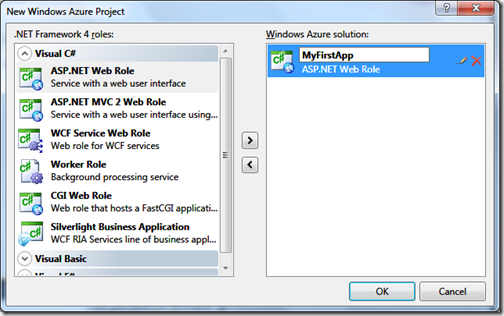
Once you say Ok, this will show another window providing you with different options to select from. I am not going into very depth of each and every Roles, just to give you brief idea,

A Windows Azure role is an individually scalable component running in the cloud where each instance of a role corresponds to a virtual machine (VM) instance.

There are two types of role:

  • A Web role is a Web application running on IIS. It is accessible via an HTTP or HTTPS endpoint.
  • A Worker role is a background processing application that runs arbitrary .NET code. It also has the ability to expose Internet-facing and internal endpoints.

We also have a special type of Role called as VM Role. You can get more details on MSDN Link about Architecture of Windows Azure Roles.

To keep it simple and focussed I have created a WebRole and named it as MyFirstApp. Once I say Ok my Solution looks something like as below.

image

It is easy to add or remove roles in the cloud service after project creation has completed. To add other roles to this cloud service, right-click on the Roles node in the cloud service and select Add -> New Web Role Project or Add -> New Worker Role Project. Selecting either of these options brings up the Add New Role dialog where you can choose which project template to use when adding the role.

You can add any ASP.NET Web Role project to the solution by right-clicking on the Roles node, selecting Add -> Web Role Project in the solution, and selecting the project to associate as a Web role.

To delete, simply select the role to delete and hit the Delete key. The project can then be removed.

Now coming back to my application. I am keeping all the default codes which was created by the designer and hit F5. Visual Studio will build your project, start the Development Fabric, initialize the Development Storage (if run for the first time), package the deployment, attach to all role instances, and then launch the browser pointing to the Web role.

image

You can see the notifications area of the taskbar shows the Development Fabric has started. The Development Fabric is a simulation environment that runs role instances on your machine in much the way they run in the real cloud.

image

Right-click on the Windows Azure notification icon in the taskbar and click on Show Compute Emulator UI. This will launch the Windows Azure Compute Emulator itself, which allows you to perform various operations on your deployments, such as viewing logs and restarting and deleting deployments. Notice that the Development Fabric contains a new deployment that hosts one Web role instance and one Worker role instance.
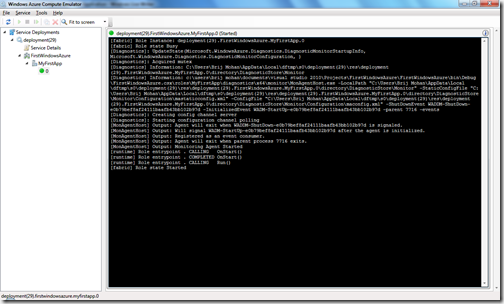
image

I hope up to this point you have not encountered any exceptions/errors. Now your sample  application is ready for deployment. If you have already got access to https://windows.azure.com then you can open the site using your credentials. Once you logged in successfully you will get nice UI build on Silverlight 4.0 interface. This is the new UI, you can switch back the old one too if you like.

image

To start the deployment process first you have to Publish the FirstWindowsAzure using the following options (Create Service Package Only). This will create the Package and Service Configuration named named FirstWindowsAzure.cspkg and ServiceConfiguration.cscfg respectively in \bin\Debug\Publish directory.

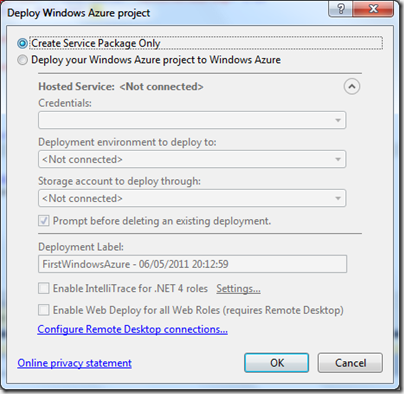
image

image

Now in the Web Interface of Windows Azure Platform, Select New Hosted Service from the Top Menu Ribbon

image

This will Popup the menu as below.

You have to choose the Desired Subscription, Provide Name, URL Prefix, Region, Deployment options, Deployment Name, Package location and configuration file location.

Since the domain cloudapp.net and is common for all the users prefix with the URL Prefix provided by you, so your prefix has to be unique and not taken by any other users. Select the Staging environment for testing purpose, Keep the Start after successful deployment checked. This will start your Service as soon as its get created. For Package location and Configuration files you have to Browse locally for the files FirstWindowsAzure.cspkg and ServiceConfiguration.cscfg respectively in \bin\Debug\Publish directory. If you enter the URL Prefix which is already taken then it will give you the following error.
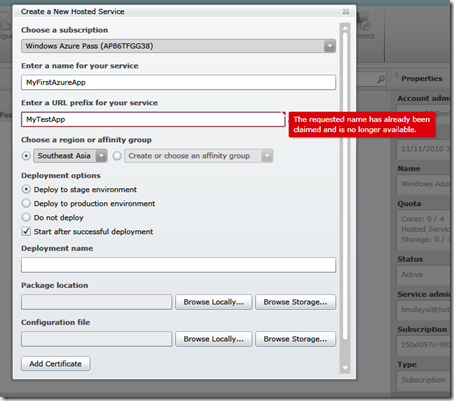
image

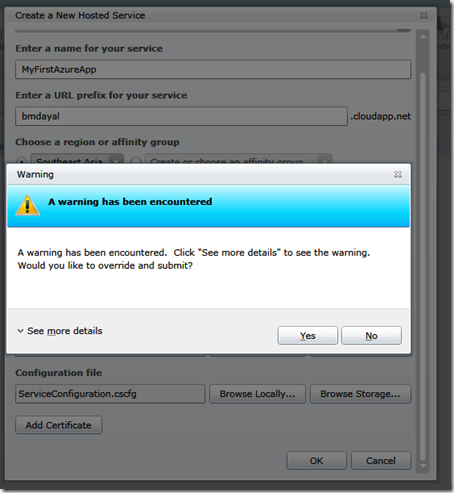
Once you enter all the required information you can Click Ok in the popup. This will validate your information's which you have entered and may give you a warning, you can simply ignore this warning.
image

This will start creating your application. Once it finishes, your application is ready to browse and hosted in Cloud. Remember this process may take a while during this time don't refresh your browser.

image

image

Once your hosted service is hosted and started, the Azure service will generate a random id for staging environment, which can be used to browse your application remotely, as given below.

image

image

This is just the basics which I wanted to share in this Post, you can also refer to MSDN article Code Quick Start: Create and deploy an ASP.NET application in Windows Azure. Both post are very much similar. I just tried to give more pictorial representation of the same for much better understanding for those who are starting from scratch.

Note: For evaluation licence of Windows Azure you one limitation is you can create only one hosted services. So before winding up just to let you know how to delete the already created hosted services.

First you have to stop the Service you have created if any, once it stopped, you can see the Delete button gets enabled. Then you can comfortably delete the created service and create the new service.

image

Other very useful link : http://blogs.msdn.com/b/jnak/

Hope this helps.

Share: